How to Use Reawote Assets in ArchiCAD
Set up Reawote materials correctly in ArchiCAD Surfaces, from Cineware texture channels and Normal maps to real-world scale and reusable surface attributes.

How to Use Reawote Assets in ArchiCAD
ArchiCAD is a BIM application first, so its material workflow is different from D5 Render, Twinmotion or Lumion.
Materials are handled as Surfaces, with their photorealistic properties built through ArchiCAD’s Cineware surface channels rather than a simple set of PBR slots.
That means you can still use Reawote maps — you just need to connect them to the channels ArchiCAD actually supports and keep the texture scale consistent with the real product.
This guide focuses on native ArchiCAD Surfaces, not Enscape, Twinmotion or another external renderer connected to ArchiCAD.
In short
- Build the material as an ArchiCAD Surface under Options → Element Attributes → Surfaces, using Cineware and Redshift in Engine Settings.
- Reawote maps do not translate one-to-one into a metallic/roughness PBR shader. Color, Roughness, Normal, Bump/Displacement and Alpha all have suitable Cineware channels, while Metallic and AO need a different approach.
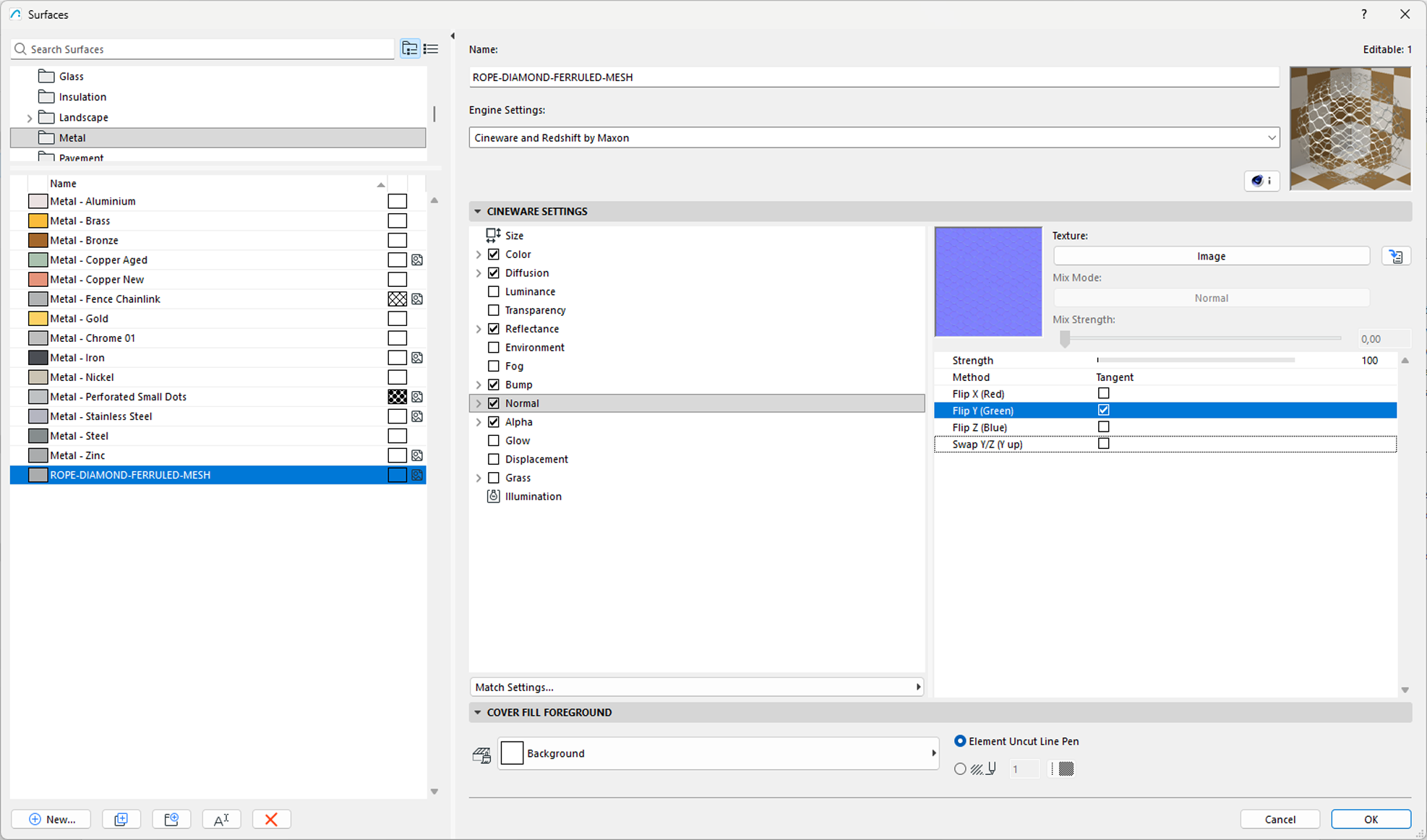
- Reawote exports OpenGL Normal maps. Load them into the Normal channel using Method: Tangent; ArchiCAD provides Flip Y (Green) if the Y direction needs to be reversed.
Download the right Reawote maps
Start by checking what the Reawote material contains and which maps are useful for the ArchiCAD Surface you are building.
A Reawote PBR material is a set of maps describing different properties of the real surface. ArchiCAD does not need every map in that set.
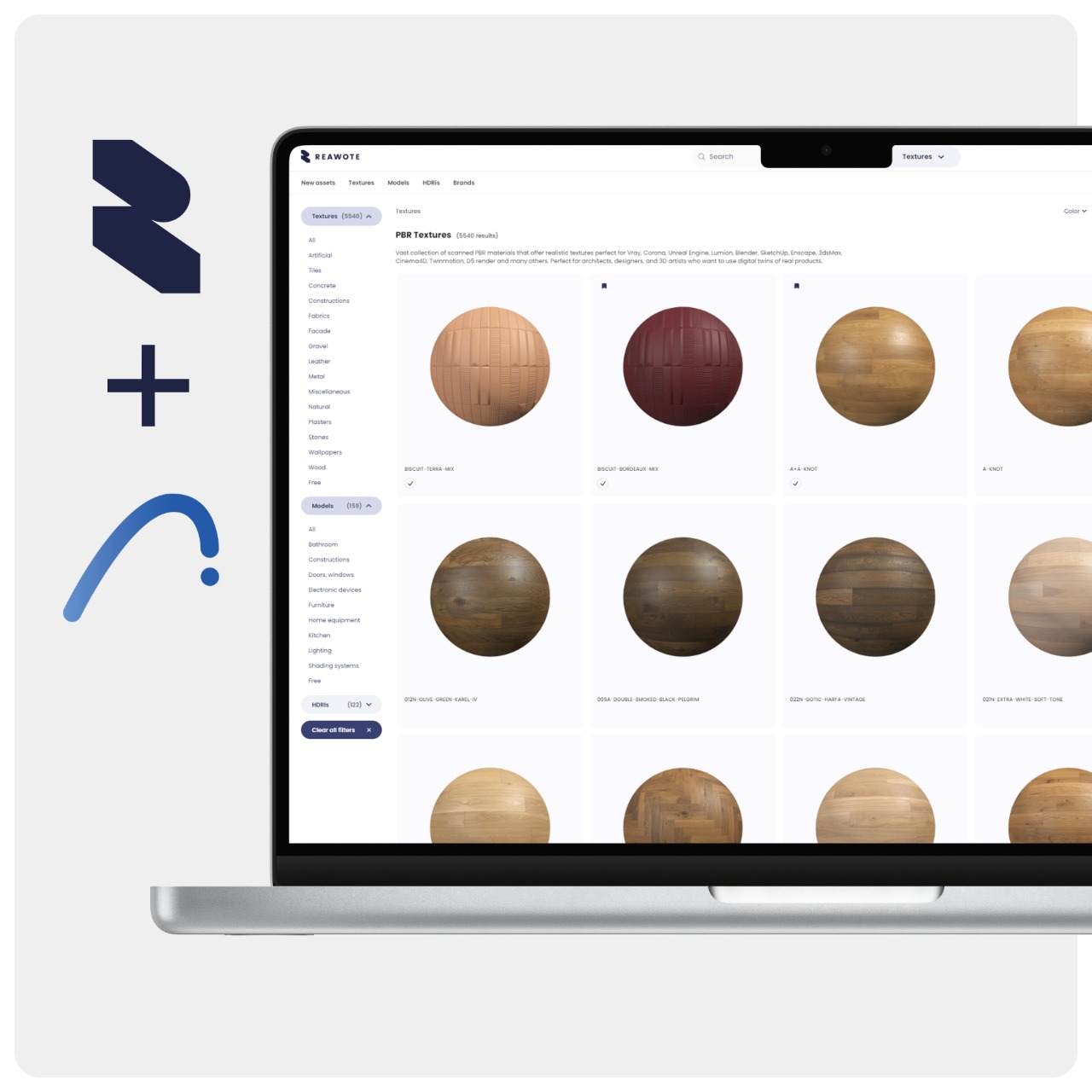
- Open the PBR asset in the Reawote library.
- Check its Resolution, Texture dimensions and Included maps.
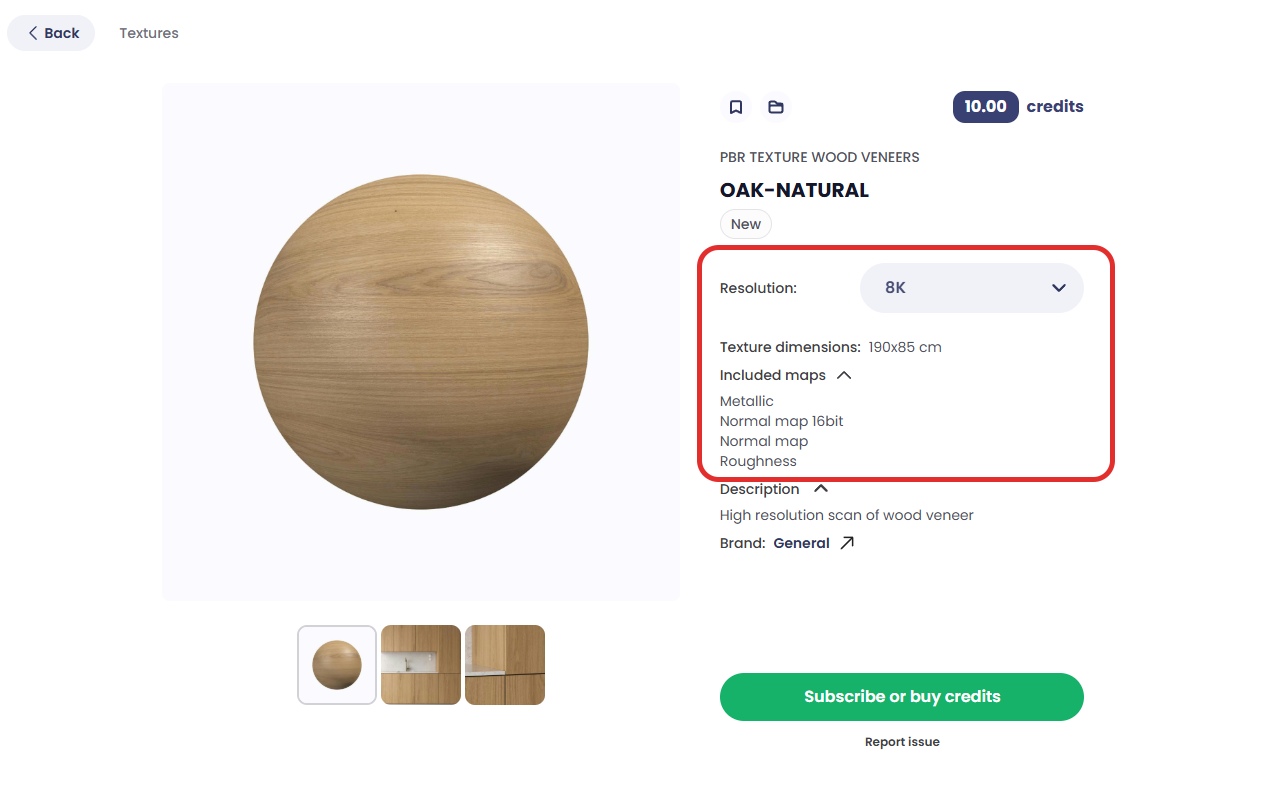
- Choose the resolution that fits the project. 4K is a practical starting point for most architectural work, while 8K is better suited to close-ups and highly visible surfaces.
- Download the PBR material package.
- Prepare the maps that are relevant to the Surface:
- Color / Albedo → Color
- Roughness → Reflectance → Roughness → Texture
- Normal → Normal, with Method: Tangent
- Metallic → no direct PBR Metalness slot; use an appropriate Reflectance setup for metallic surfaces
- Ambient Occlusion → no dedicated PBR AO-map slot; Cineware provides Ambient Occlusion as a shader or render effect
- Displacement / Height → Displacement, or Bump for simulated shallow relief
- Opacity → Alpha; use Transparency for physically transparent materials
ArchiCAD Surfaces reference texture files stored in the project libraries. Make sure the downloaded Reawote maps are available to the project before building the Surface.
Start with the maps the Surface actually needs. There is no benefit in forcing an unsupported map into the wrong channel.
Create the Surface and connect the maps
Current ArchiCAD versions use engine-specific Surface settings.
- Open Options → Element Attributes → Surfaces.
- Select a similar existing Surface or create a duplicate as your starting point.
- Under Engine Settings, choose Cineware and Redshift.
- Enable the channels you need and load the corresponding Reawote texture into each channel.
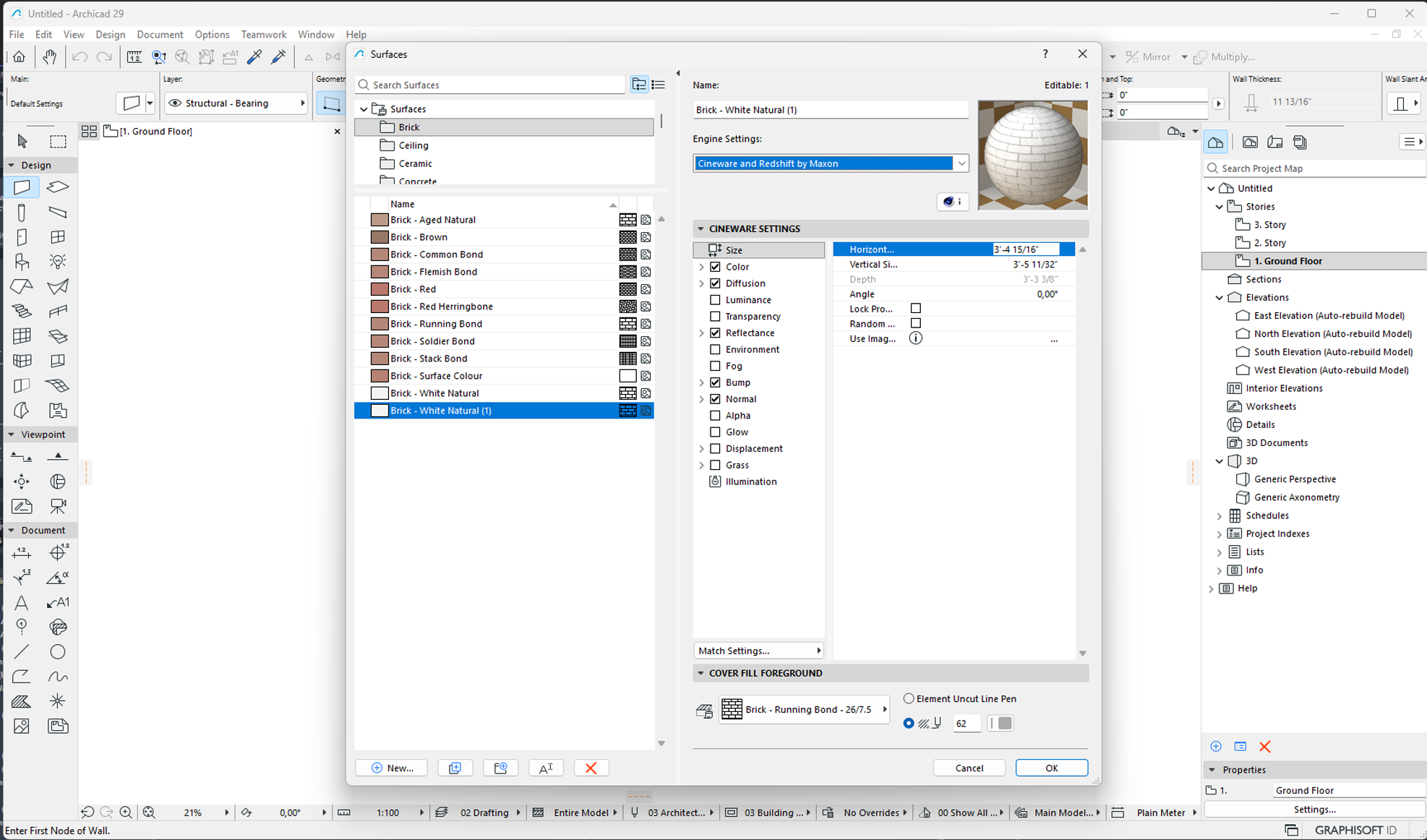
Changes made under one rendering engine do not automatically transfer to another. Make sure you are editing the Cineware version of the Surface.
Color and Reflectance
Enable the Color channel and load the Reawote Color / Albedo map as its texture.
Keep the underlying channel color neutral if you want the Reawote texture to define the original product appearance.
For the Reawote Roughness map:
- Open the Reflectance channel.
- Select the reflection layer you want to control.
- Find Roughness.
- Load the Reawote Roughness map into its Texture input.
Use the Roughness map directly. If you only have a Glossiness map, invert it first because Glossiness describes the opposite property.
For metallic surfaces, Cineware does not provide a simple PBR Metalness slot. Build the material through Reflectance instead.
Reflectance layers can use their own color, roughness and masks, making them suitable for metallic surfaces and more advanced mixed materials.
Normal, Bump and Displacement
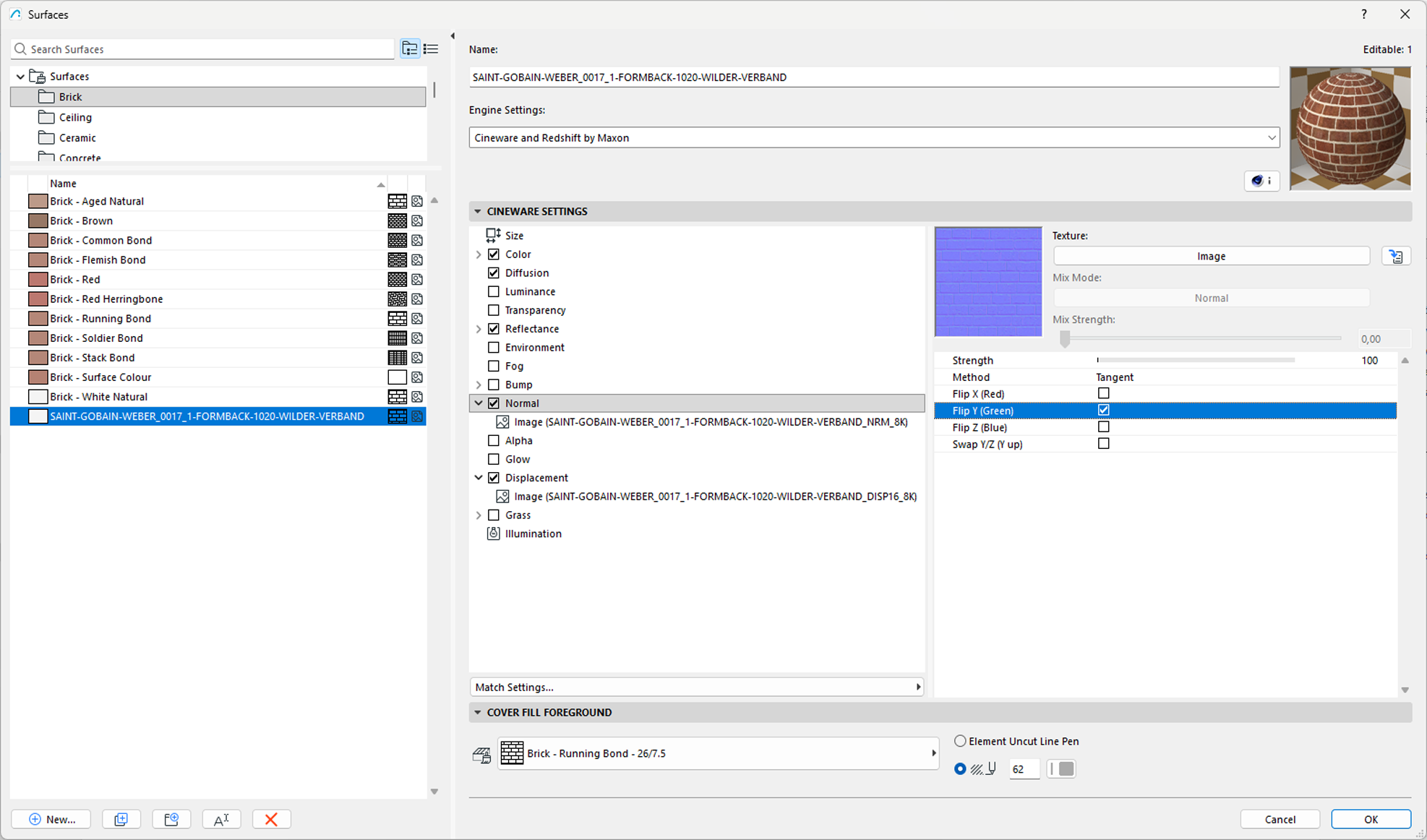
For fine surface detail, enable the Normal channel and load the Reawote Normal map.
- Load the Reawote Normal map into Normal.
- Set Method to Tangent.
- Adjust the Normal strength only as much as the real surface requires.
Tangent is the standard method for the blue-purple tangent-space Normal maps used in most PBR materials.
For grayscale depth, ArchiCAD gives you two options:
- Bump changes the surface normals and creates the appearance of relief without changing the actual geometry.
- Displacement creates real geometric deformation in the rendered surface and is better suited to stronger relief.
Use the Reawote Displacement / Height map in the channel that fits the result you need. Keep the strength realistic.
Opacity and transparency
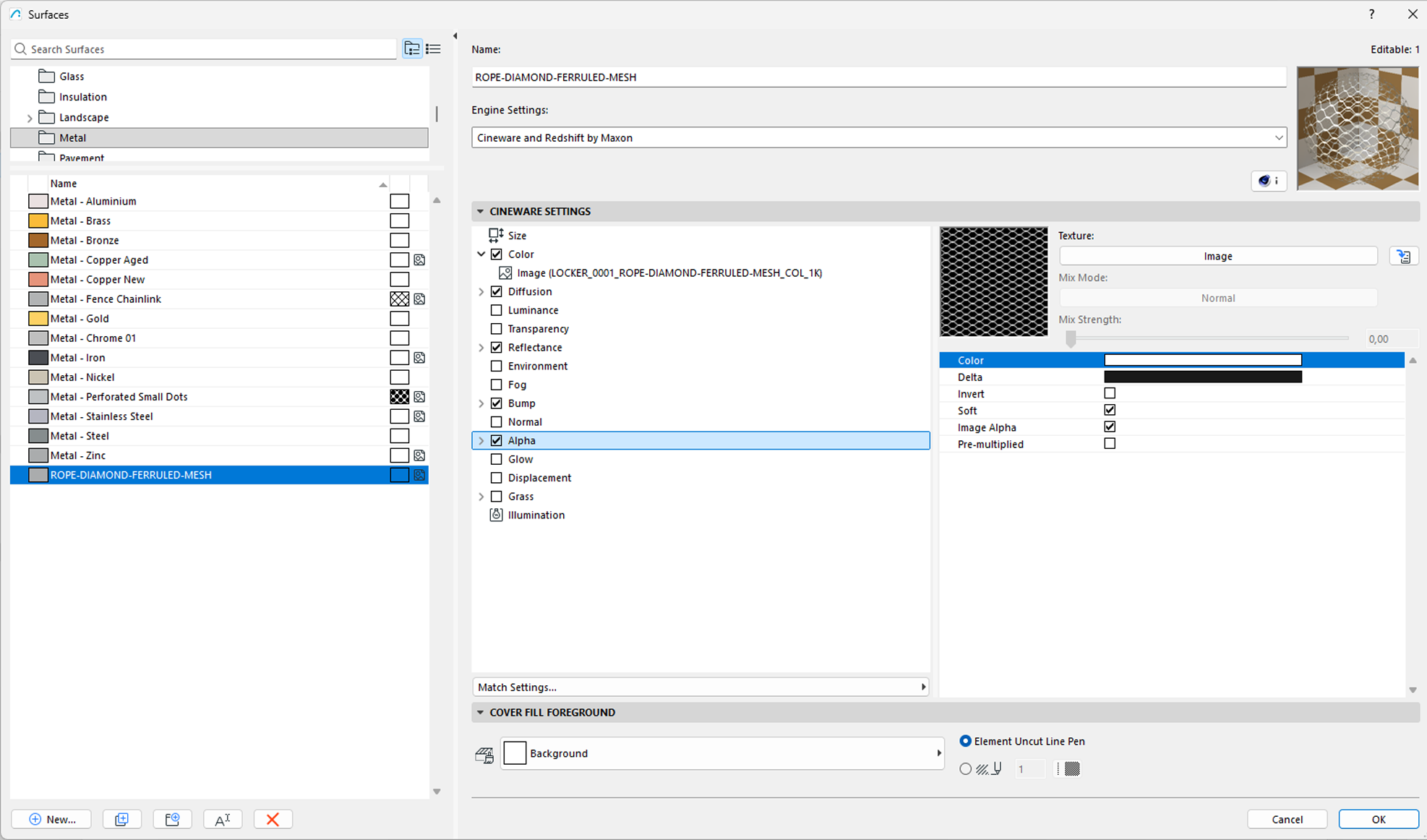
For cutout materials such as perforated panels, mesh or lace, enable the Alpha channel and load the Reawote Opacity map.
The Alpha channel masks parts of the surface entirely or partially.
If the mask works in the opposite direction, enable Invert. Grayscale values can also create gradual transitions rather than only hard black-and-white cutouts.
Use Transparency instead when the material itself is physically transparent, such as glass. The Transparency channel also provides controls for refraction.
Get the Normal map direction right
Reawote exports Normal maps in OpenGL format.
Load the map into the Normal channel and set Method to Tangent.
ArchiCAD’s Cineware Normal channel includes Flip Y (Green) to correct the Y component when a Normal map uses the opposite orientation.
Start with the Reawote map as supplied. If directional details appear inverted, enable Flip Y (Green).
This lets you correct the Normal-map direction directly inside ArchiCAD without editing the source texture.
Match the material to its real-world scale
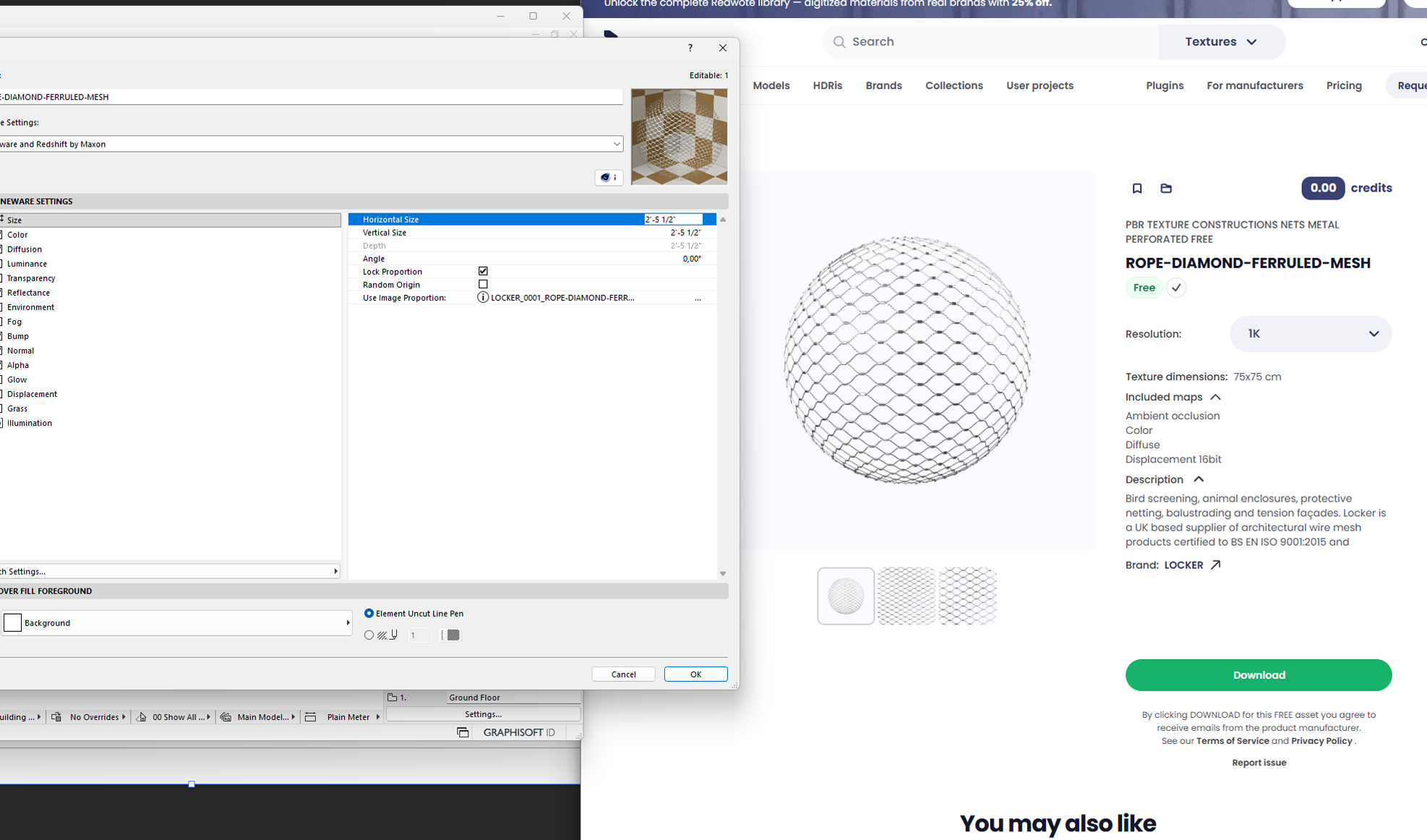
Reawote lists the real Texture dimensions for each material. ArchiCAD lets you define the physical size of the Surface unit directly.
- Check the Texture dimensions on the Reawote asset page.
- In the Surface settings, set Horizontal Size and Vertical Size to match those dimensions.
- Keep the same mapping scale across the image channels so Color, Normal, Bump/Displacement and Alpha stay aligned.
Horizontal Size and Vertical Size define how large one Surface unit appears on the object.
🔴 [SCREENSHOT: Reawote Texture dimensions next to ArchiCAD Surface Horizontal Size and Vertical Size settings, with the texture scaled correctly in the 3D view.]
Fix the most common material problems
Most issues come down to a few simple checks:
- Texture is missing in the 3D view — make sure the texture file is available in the project library and that textures are enabled in the current 3D Style.
- Surface detail looks inverted — check the Normal map with Method: Tangent and enable Flip Y (Green) if the Y direction is reversed.
- Material looks too glossy — check the Reflectance → Roughness setup and make sure a Glossiness map has not been used as Roughness without inversion.
- Pattern looks too large or too small — match Horizontal Size and Vertical Size to the Texture dimensions shown in Reawote.
- Cutout areas are reversed — enable Invert in the Alpha channel.
Save the finished Surface for reuse
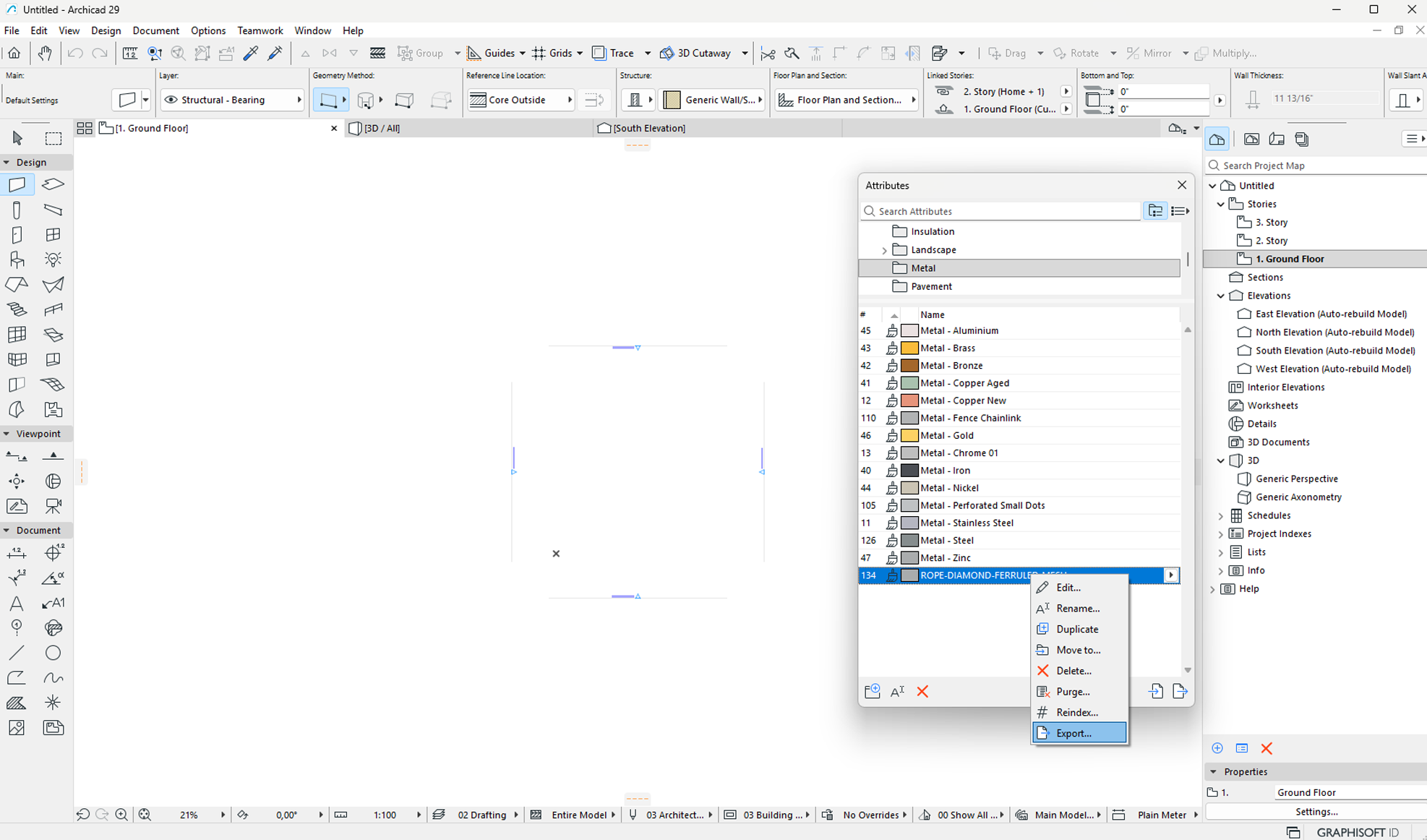
Once the Surface is set up correctly, you can export the Surface attribute and reuse it in another ArchiCAD project.
- Open Options → Element Attributes → Attributes.
- Select the finished Surface.
- Click Export.
- Export the attribute as XML.
- In another project, use Import in the Attributes palette to bring the Surface back in.
The XML transfers the Surface attribute, but the bitmap textures themselves remain external library files.
Make sure the Reawote maps are also available in the target project library.
ArchiCAD will not use every map in a Reawote PBR package in exactly the same way as a dedicated PBR renderer. That is expected.
Use the channels the Surface system supports, keep the real-world scale correct and preserve the full Reawote package for any downstream renderer that needs the complete PBR set.
The BIM model stays practical. The material stays connected to the real product.
Related posts
Join our community and stay updated on all things 3D
Sign up to our newsletter.


Build a better world with real-world 3D detail
Step into the digital world and explore new ways to create, present, and distribute products — without limits or physical constraints.