How to Use Reawote Assets in Twinmotion
Set up Reawote PBR materials correctly in Twinmotion, from map assignment and normals to displacement and real-world texture scale.

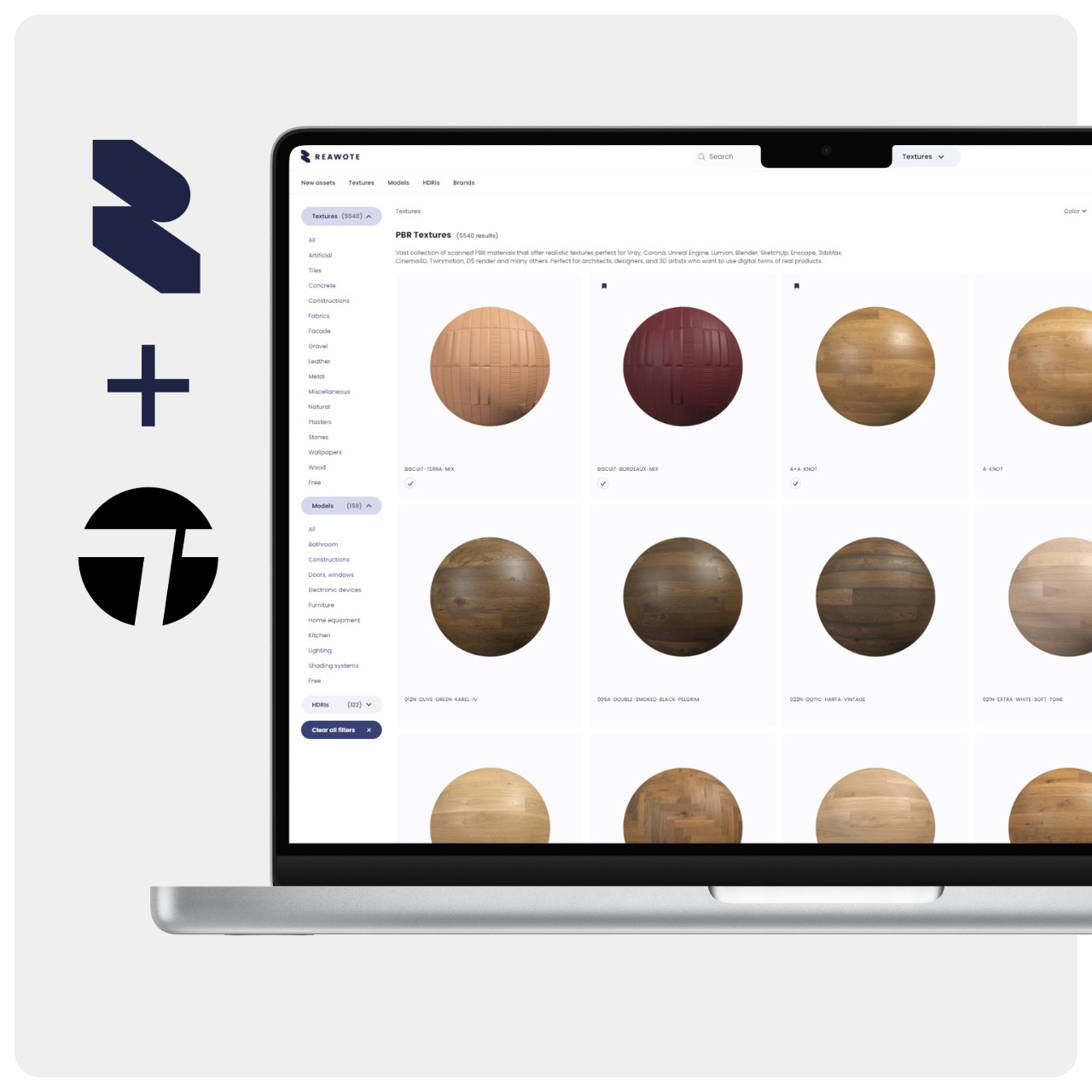
How to Use Reawote Assets in Twinmotion
A good PBR material should not need endless tweaking before it starts looking believable. In Twinmotion, most of the work comes down to connecting the right Reawote maps to the right material properties, setting the surface depth correctly and matching the texture to its real-world size.
Once that is done, Twinmotion already has the information it needs to reproduce the color, reflections and surface structure of the real material.
This guide takes you through the complete workflow.
In short
- For most Reawote PBR materials, start with a Twinmotion Standard material and connect Color, Roughness, Normal and, where relevant, Metallic, AO, Height and Opacity maps.
- Reawote exports OpenGL Normal maps. Current Twinmotion documentation states that Normal maps default to DirectX, while enabling Invert switches their interpretation to OpenGL.
- Use the real Texture dimensions shown in Reawote and adjust the Twinmotion UV Scale until the material matches the physical product.
Download the right Reawote maps
Before opening Twinmotion, prepare the version of the asset that makes sense for your scene.
A Reawote PBR material is a set of texture maps describing different properties of the real surface. You do not need every available map for every material.
- Open the PBR asset you want to use in the Reawote library.
- Check its Resolution, Texture dimensions and Included maps.
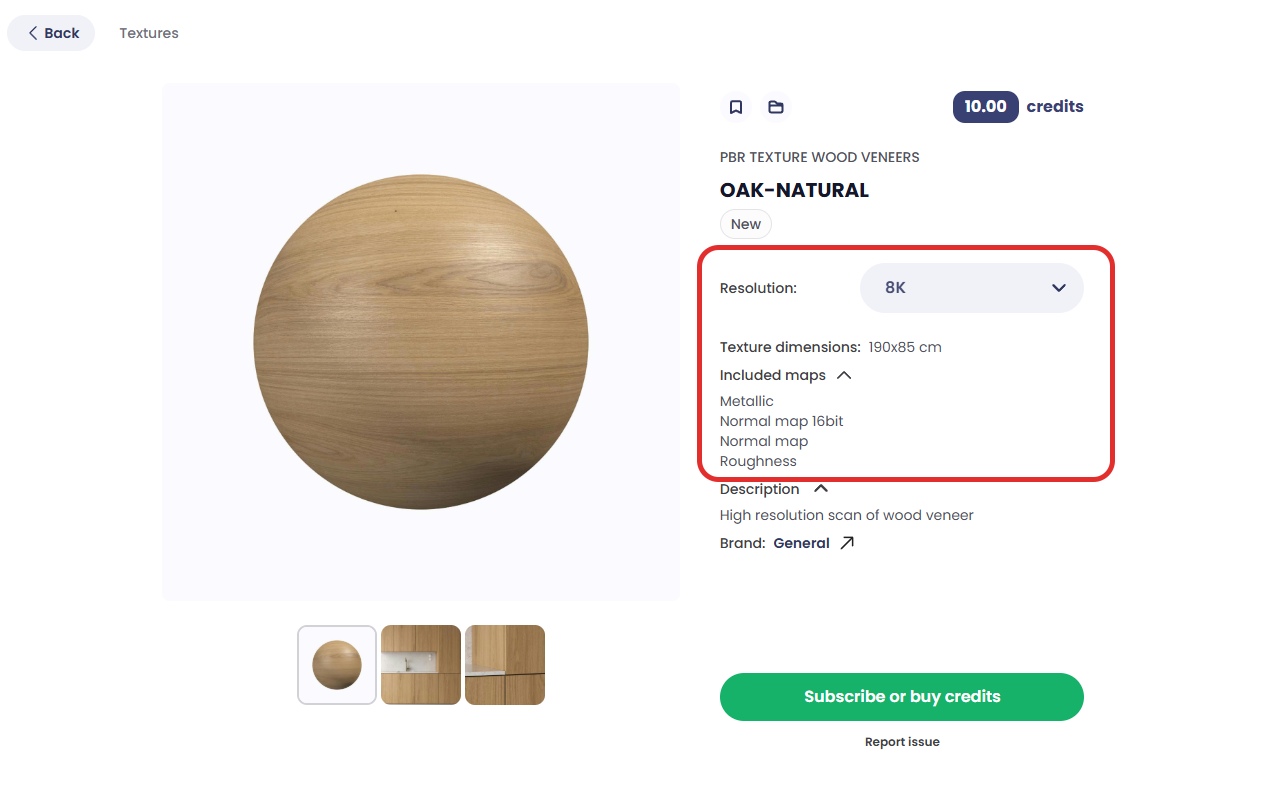
- Choose the resolution that fits your scene. 4K is a practical starting point for most architectural visualization work, while 8K is better suited to close-ups and surfaces where fine detail needs to hold up.
- Download the PBR material package.
- Prepare the maps that are relevant to the material:
- Color / Albedo → Color → Texture
- Roughness → Roughness → Texture
- Normal → Normal → Normal map
- Metallic → Metallic → Texture
- Ambient Occlusion → Ambient Occlusion → Texture
- Displacement / Height → Normal → Parallax → Height map
- Opacity → Opacity → Opacity map
Twinmotion Standard materials provide dedicated inputs for these PBR properties. Height maps are handled through the Parallax controls inside the Normal section.
If the Reawote package includes both Roughness and Glossiness, use Roughness. Glossiness describes the same surface property in the opposite direction and should not be loaded directly as Roughness without inversion.
Start with what the material actually needs.
Bring the material into Twinmotion and connect the PBR maps
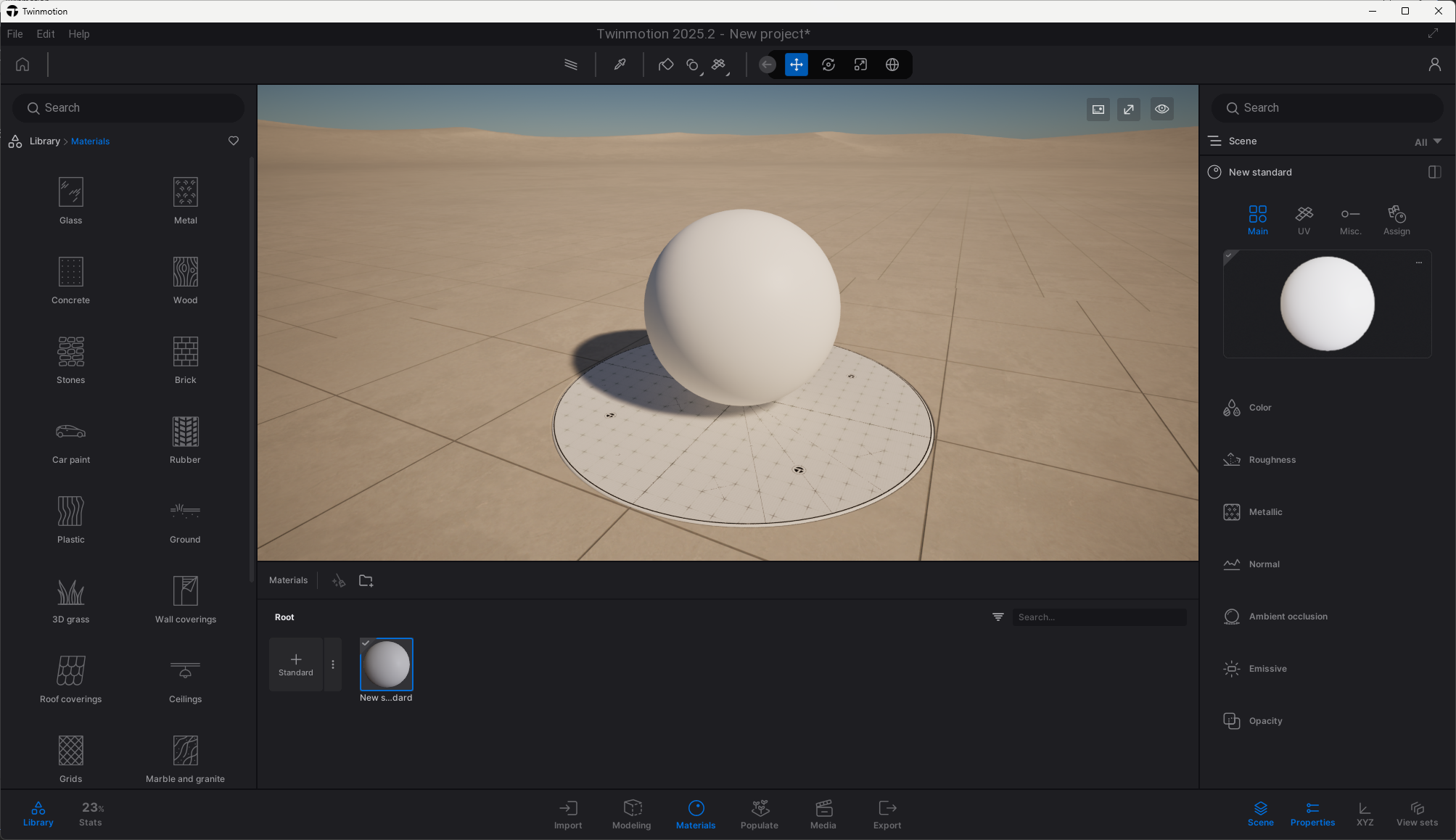
For most Reawote surfaces, the Standard material is the right starting point. Twinmotion creates and manages custom materials in the Materials dock, with their settings shown in the Properties panel.
- Click Materials in the Footer to open the Materials dock.
- Make sure Standard is selected as the material type.
- Click the Add (+) icon to create a new Standard material.
- Select the new material to display its settings in the Properties panel.
- Drag the material onto the surface where you want to use it.
Base Color
Open Color → Details, click the texture preview and load the Reawote Color / Albedo map.
Keep Tint neutral if you want to preserve the original scanned product color.
Roughness
Open Roughness → Details and load the Reawote Roughness map.
Roughness controls whether reflections appear sharp or soft across the surface. Use the Roughness map rather than Glossiness unless the Glossiness map has first been inverted.
Normal
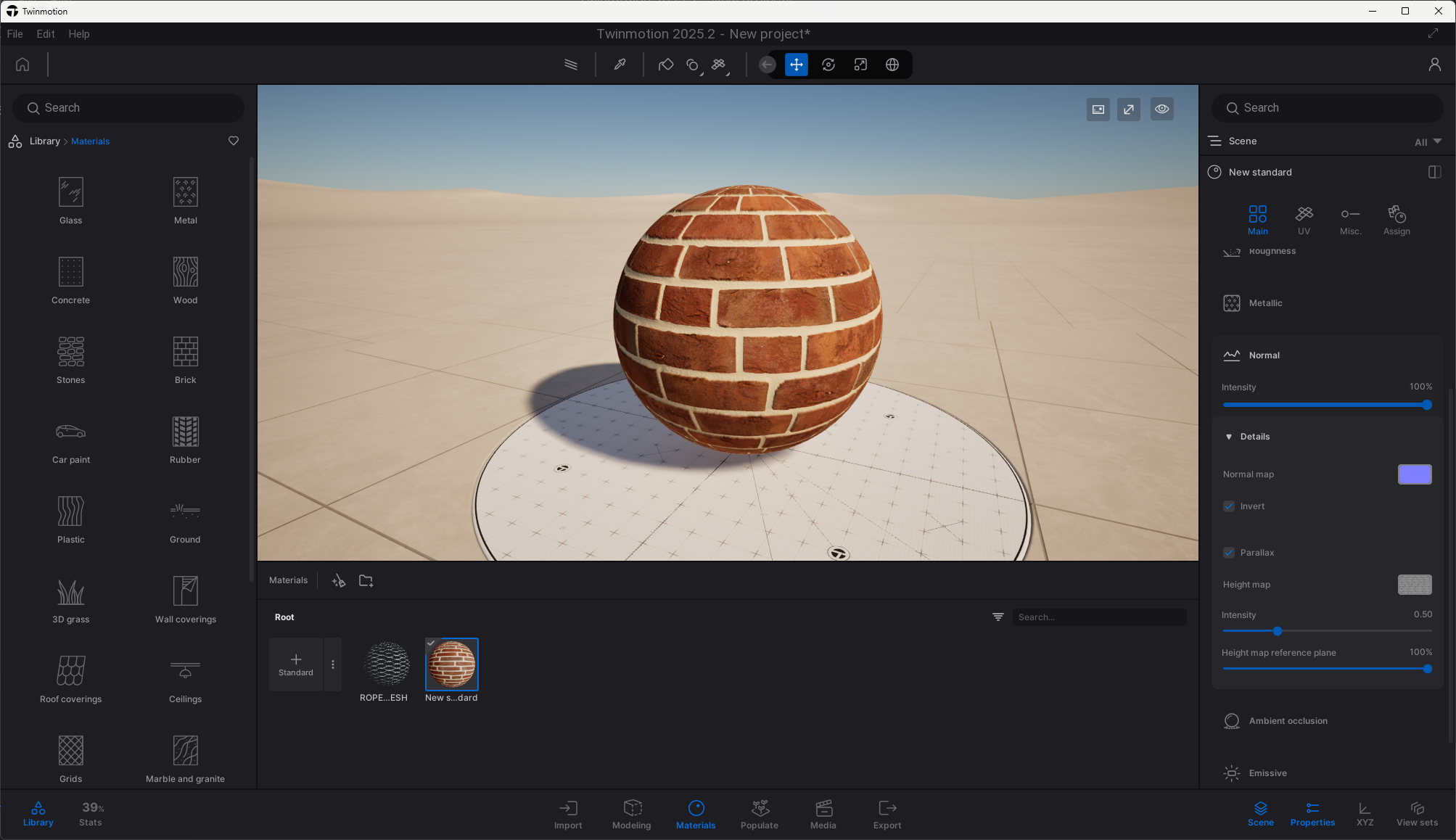
Open Normal → Details and load the Reawote Normal map.
The Normal map provides the fine surface detail — grain, pores, scratches, fabric weave and other small structures that need to react to light without changing the geometry.
The OpenGL / DirectX setting needs one additional check, which we will cover below.
Metallic
Load the Reawote Metallic map under Metallic → Details → Texture when the material requires one.
Keep wood, stone, plaster, ceramic, fabric and other non-metallic surfaces non-metallic. Metallic should describe real metal, not simply make a surface more reflective.
Ambient Occlusion
Load the Reawote AO map under Ambient Occlusion → Details → Texture.
AO can reinforce cavities and small recessed details in Twinmotion's real-time rendering modes. It is not supported in Path tracer rendering mode.
Height / Displacement
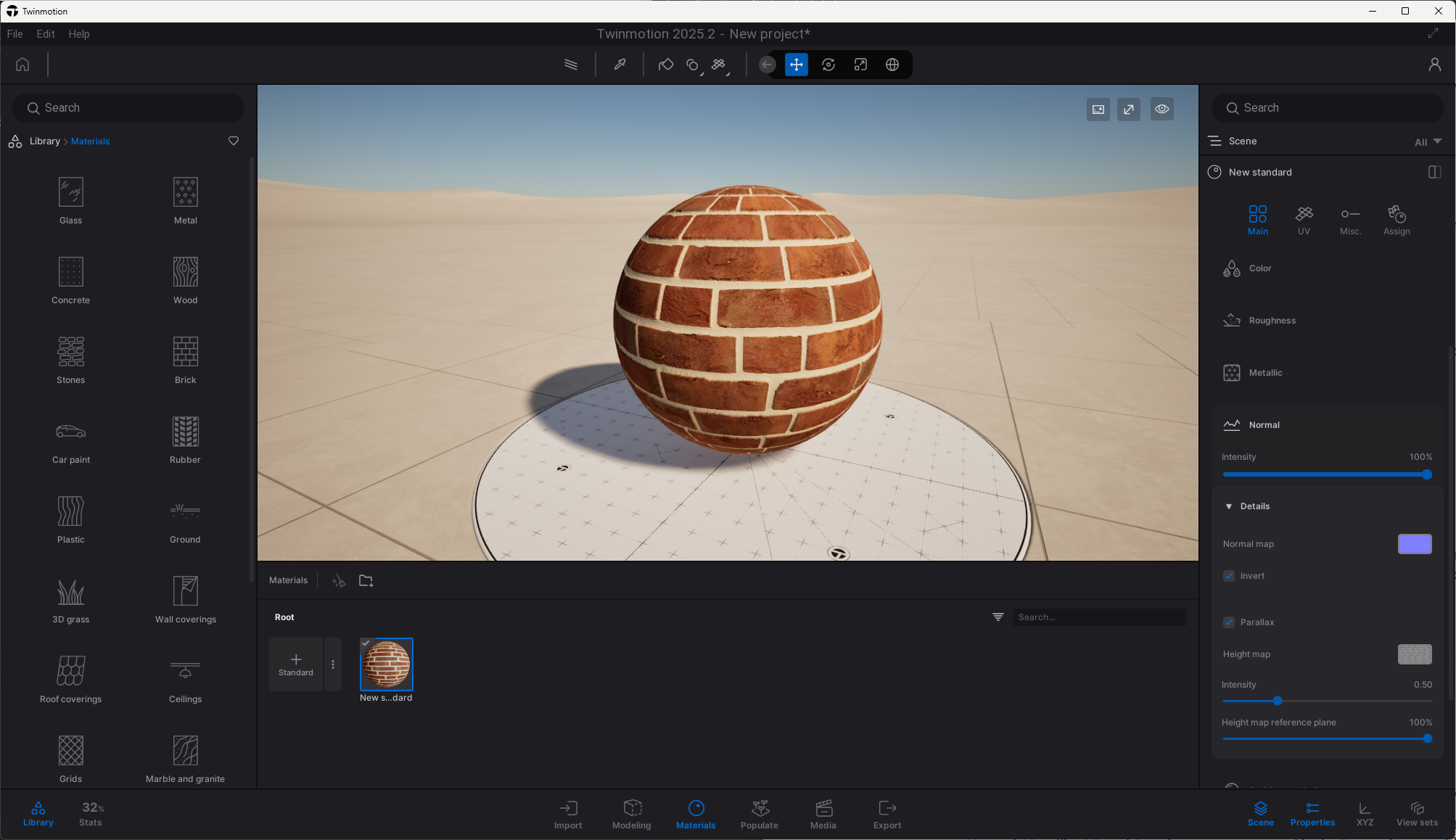
Twinmotion uses the Reawote Height / Displacement map through its Parallax system rather than a separate displacement material.
- Open Normal → Details.
- Enable Parallax.
- Load the Reawote Displacement / Height map into Height map.
- Adjust the Height Intensity until the relief matches the real surface.
Brighter areas of the Height map represent higher parts of the relief, while darker areas represent lower parts.
Opacity
For materials with cutouts or transparent areas:
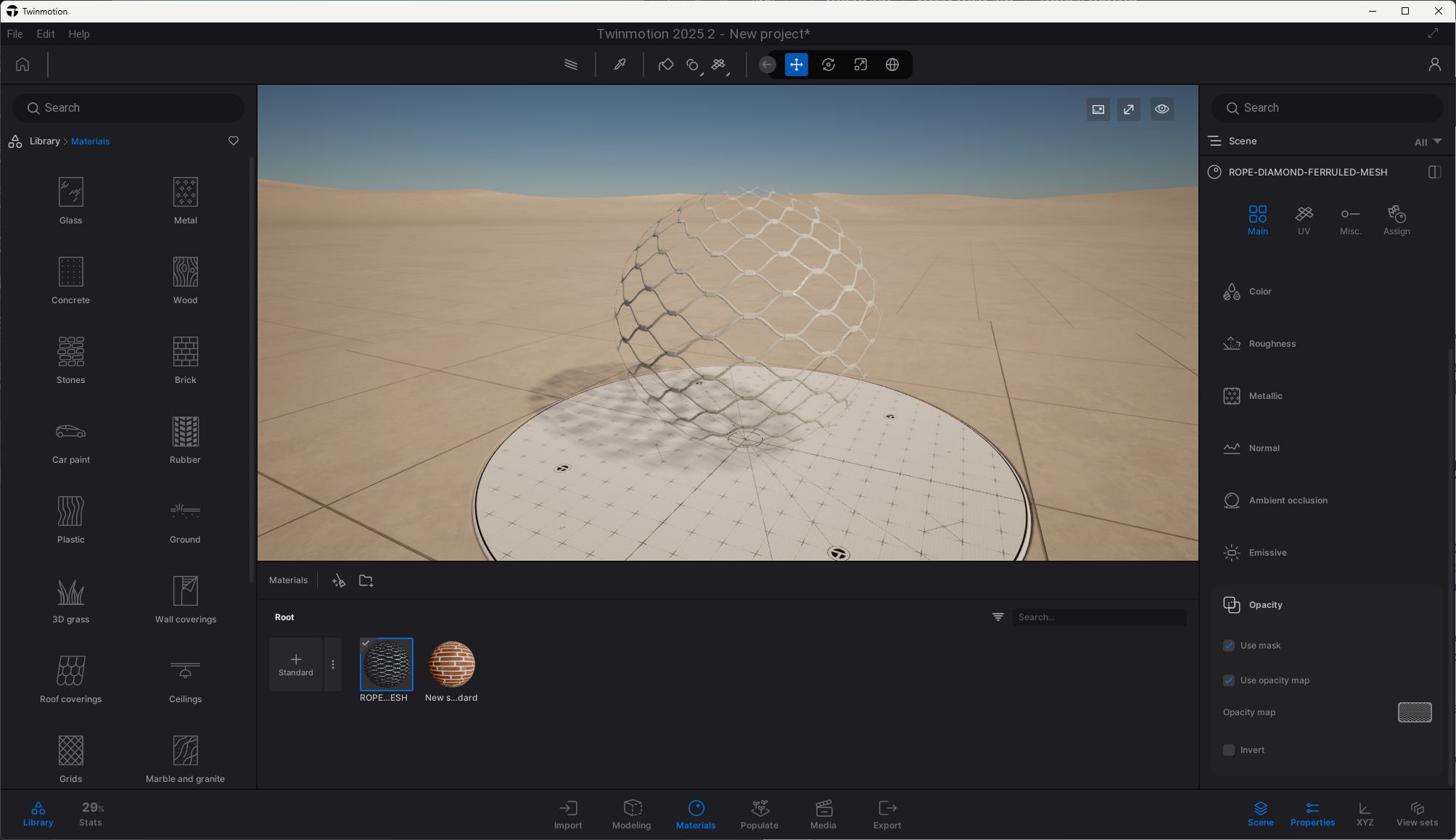
- Open Opacity.
- Enable Use opacity map.
- Load the Reawote Opacity map into Opacity map.
Twinmotion also provides Invert if the black and white values of the mask need to be reversed.
Get the Normal map direction right
Reawote exports Normal maps in OpenGL format.
Current Twinmotion documentation states that the Normal input uses DirectX by default, while enabling Invert changes the interpretation to OpenGL. That means a Reawote OpenGL Normal map should be usable directly by loading it into Normal map and enabling Invert, without editing the texture externally.
Check a directional detail such as a groove or mortar joint at an angle. Recessed areas should read as recessed, not raised.
Match the material to its real-world scale
Reawote lists the real Texture dimensions for each material, so you can scale it to match the actual product instead of guessing.
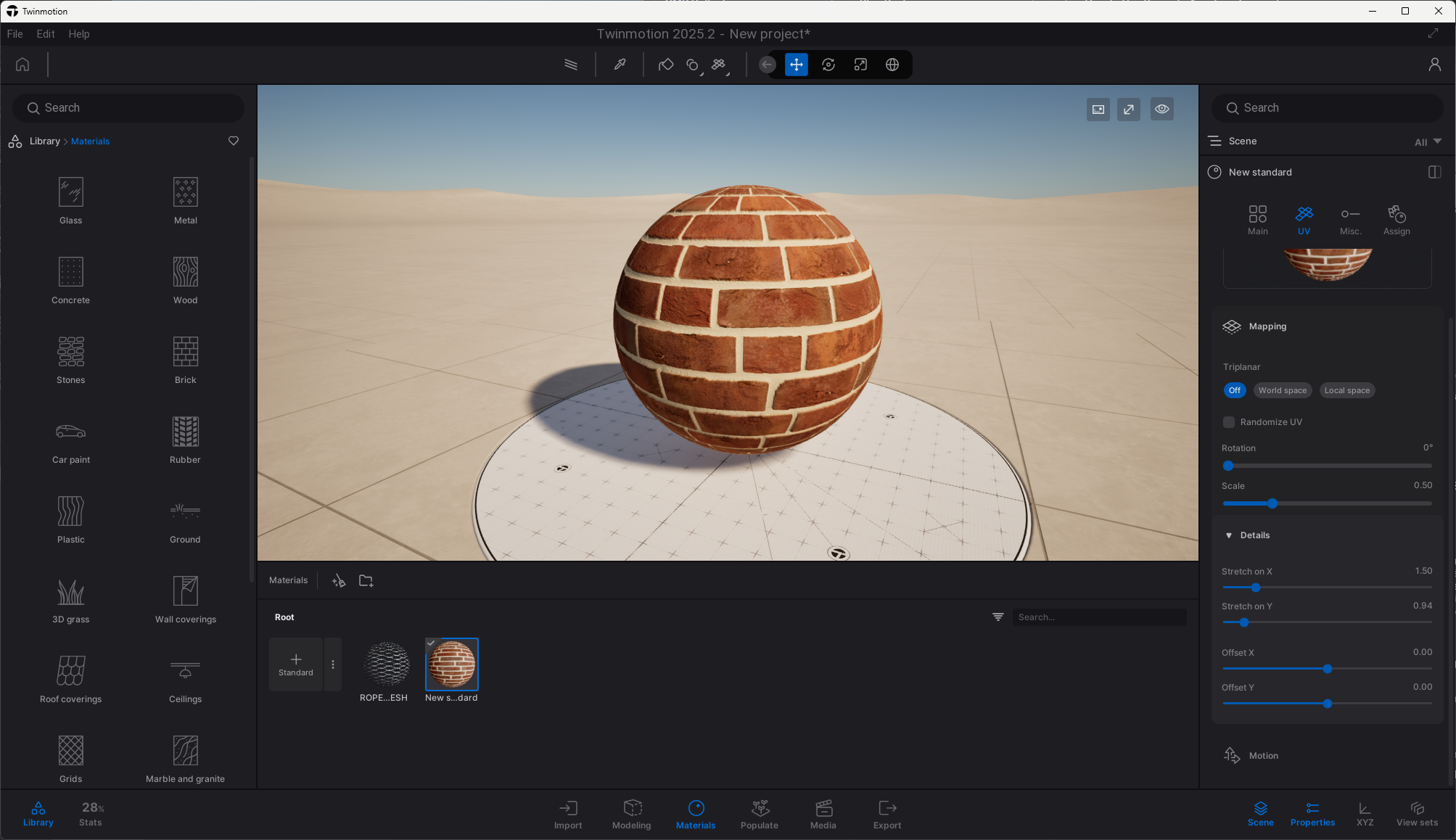
Twinmotion's current Standard material settings include a Scale control under UV → Mapping.
- Check the Texture dimensions on the Reawote asset page.
- Apply the material to geometry whose real size you know.
- Adjust UV → Mapping → Scale until one texture repeat matches those dimensions.
Keep the same UV mapping across the material so all maps remain aligned.
Fix the most common material problems
Most issues come down to a few simple checks:
- Surface detail looks inverted — check the Normal convention; for Reawote's OpenGL map, Invert should be enabled if the current Twinmotion behaviour matches the official documentation.
- Material looks too glossy — make sure you loaded Roughness rather than Glossiness and check the Roughness Intensity.
- Wood, stone or plaster looks metallic — reduce Metallic; keep non-metals non-metallic and use Roughness to control their reflection character.
- Pattern looks too large or too small — match the UV Scale to the Texture dimensions shown in Reawote.
- Height map has no visible effect — make sure Parallax is enabled and the Reawote Height map is loaded into Height map.
Save the finished material for the next project
Once the material is mapped and scaled correctly, save it so you do not need to build it again.
- Select the material using the Material picker.
- In the Properties panel, open the Material menu using the ellipsis (...) next to the material preview.
- Select Add to user library.
The material is now stored in your Twinmotion User library and can be reused in other projects without rebuilding it from scratch.
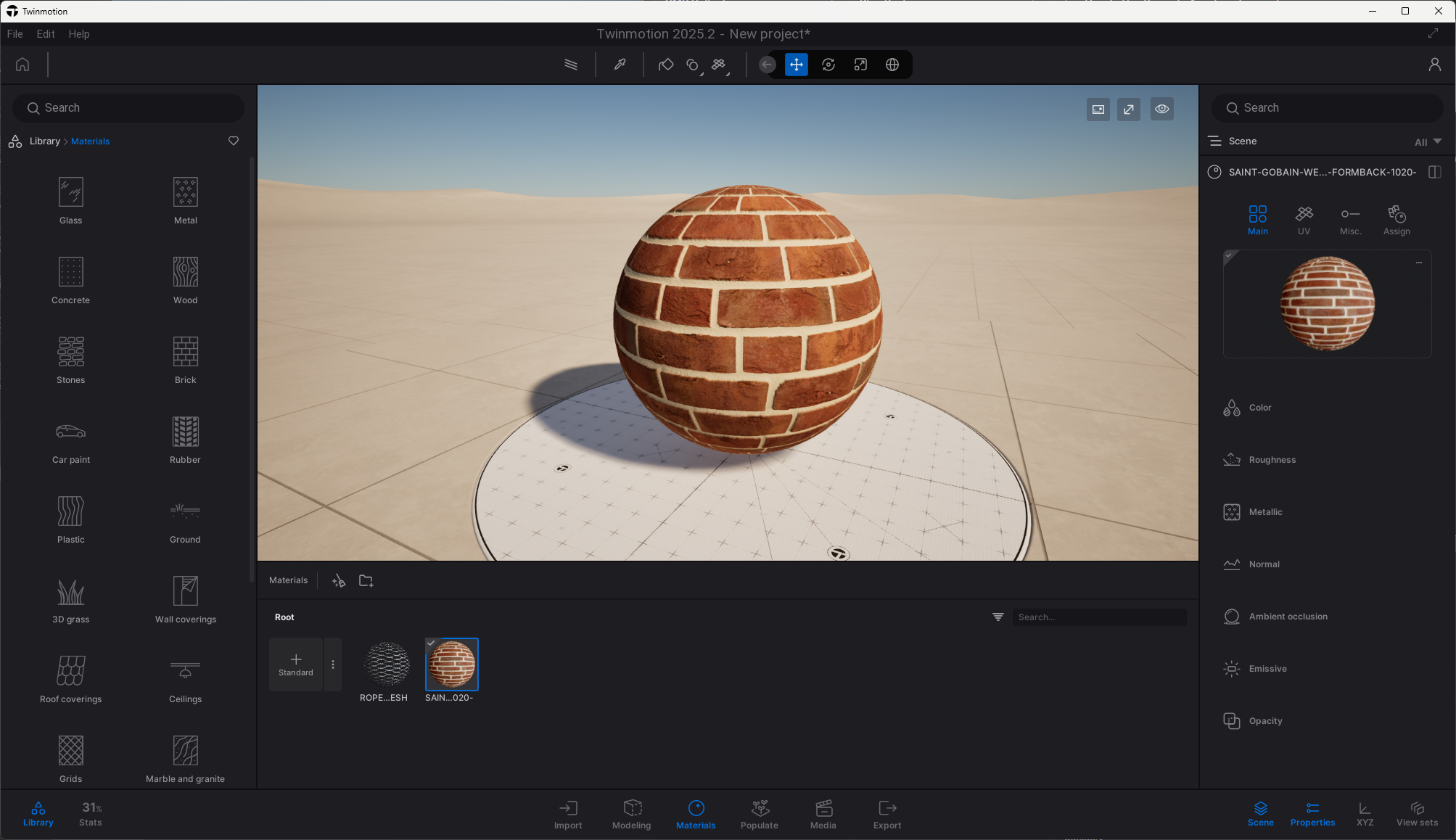
Once you know where the maps belong, the workflow becomes straightforward: download the Reawote asset, connect the PBR maps, match the scale and save the finished material for later.
Less rebuilding. Less guessing. More time designing.
Related posts

Join our community and stay updated on all things 3D
Sign up to our newsletter.


Build a better world with real-world 3D detail
Step into the digital world and explore new ways to create, present, and distribute products — without limits or physical constraints.